R-Go Numpad Break

With break indicator

With break indicator

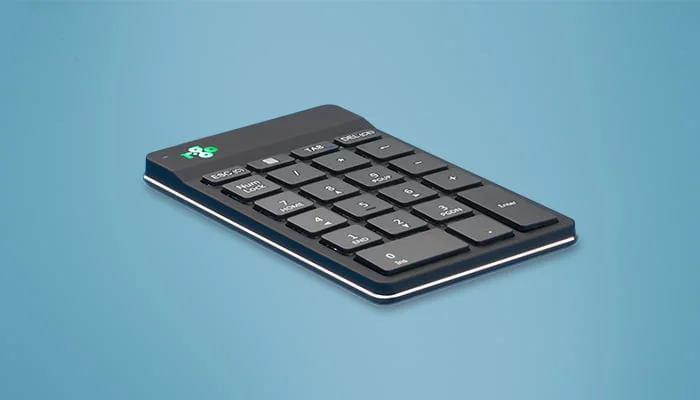
Thin design

For both left as right

With integrated break indicator

Helps you remember to take breaks

The R-Go Numeric Keyboard has a break indicator controlled by the R-Go Break Software. The LED light at the top of the keyboard changes colour as you work to indicate you how healthy you are working. When the light turns green, it means you are working healthily. Orange indicates it is time for a short break and red indicates you have missed a break. This gives you positive feedback on your break behaviour.

Benefits

R-Go Numpad Break

  • With break indicator
  • Thin design
  • Easy to take with you
  • Can be used separately or with R-Go Split Break / R-Go Compact Break

Compact model

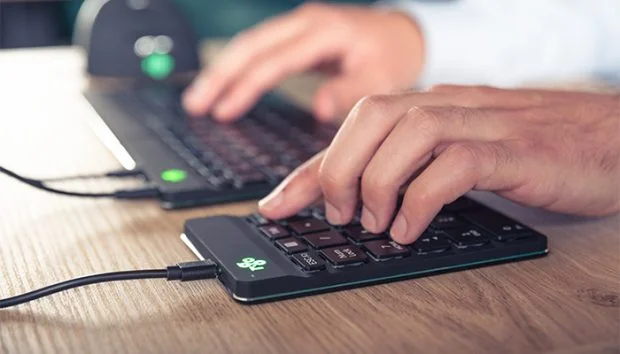
Ergonomic compact typing

Placing the numeric on the opposite side of the keyboard than the mouse will help both hands to remain within shoulder width as you work. This divides the load between both hands and prevents strain complaints. Ideal in combination with the R-Go Compact Break and R-Go Split Break keyboard.

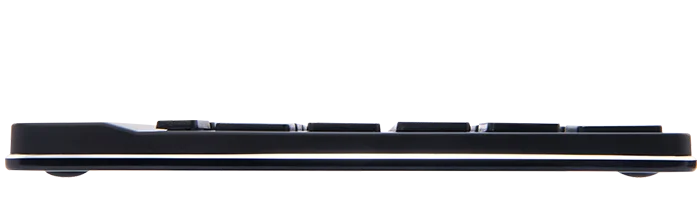
Ultra-thin design

Thin keyboard with light keystroke

This numpad is ultra-thin, so your wrists are in a natural, flat position while typing. The special scissor mechanism in the keys ensures a light keystroke, so you need less strenght to type.

Everything you need to know

Description

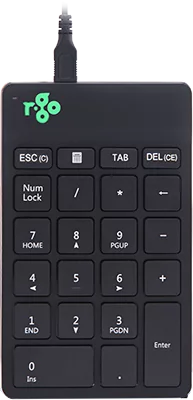
Experience maximum freedom while typing with the R-Go Numpad Break. You can operate this numeric keyboard with your left or right hand and decide yourself where to place it on your desktop. By operating the numpad with the hand that is not using the mouse, both hands remain within shoulder width as you work. The load will be equally divided between both hands. Ideal in combination with the R-Go Compact Break and R-Go Split Break keyboard. The ultra-thin design ensures that your wrists are in a natural, flat position while typing. The special scissor mechanism in the keys ensures a light keystroke, so you need less strenght to type. The R-Go Numpad includes a built-in break indicator, which indicates with colour signals (green, orange, red) when it’s time to take a break.

Certified

Tested and recommended

”Ergonomic and body-friendly mice, keyboards, monitor arms, document holders and laptop stands from R-Go provide assistance for natural and effortless computer work. They relieve the user instead of putting extra strain on them. It is especially important that the aids fit the user, as different people have different preferences. Congratulations on the AGR seal of approval and on products that make working life easier!”
Aktion Gesunder Rücken (AGR)

FAQ

Frequently asked questions

Category: Twister

Yes. A cable is included in the package, which you can simply plug into your mouse and connect to your computer. The Twister can be used with or without the cable without any problems. For wireless use, you only need to establish the Bluetooth connection once: you don’t have to repeat this every time after using the mouse with a cable.

Categories: HE Basic HE Break Twister

For wired/wireless mice of medium size: The DPI button is located on the underside of the mouse and is labeled “DPI.” Clicking it once changes the DPI value by 1.

For wired/wireless large-sized mice: The DPI button is located behind the left and right mouse buttons.

  • Go to “Settings” in the Windows menu and click on “Devices.”
  • Check whether “Bluetooth” is displayed in the line that appears.
  • If so, check whether Bluetooth is actually turned on.

Attention: Do not use a Bluetooth dongle at this point, as this will prevent the connection from being established!

Categories: HE Basic HE Break Twister
  • Go to “Settings” via the Windows menu and click on “Devices.”
  • Turn Bluetooth “On.”
  • Make sure your new device is sufficiently charged.
  • Press and hold the sync button on the bottom of the device until the blue light flashes.
  • Select the mouse from the row displayed on the computer screen to pair it with theComputer zu verbinden.

Category: Twister

Yes, that’s correct. The Twister can only be used when the mouse is folded open vertically.

Categories: HE Basic HE Break Twister

This is not due to the mouse, but to the computer. There are often two reasons for this:

  1. Several Bluetooth devices are connected to the computer. This can cause the computer to process the Bluetooth information from your mouse with a delay. The mouse pointer then appears to freeze. This usually resolves itself within a minute and the mouse works normally again.
  2. At this point, the computer has to load many programs at the same time. As a result, the Bluetooth information from the mouse is processed with lower priority and is therefore delayed. This usually resolves itself within a minute and the mouse will function normally again.

Category: Twister

The HE mouse is compatible with Windows/Mac OS/Linux.

Download catalog

"*" indicates required fields

This field is hidden when viewing the form
Privacy Policy*
Newsletter confirmation