R-Go HE Break Mouse

With Break indicator

With break indicator

Vertical shape

Comfortable grip

With integrated break indicator

Reminds you to take breaks

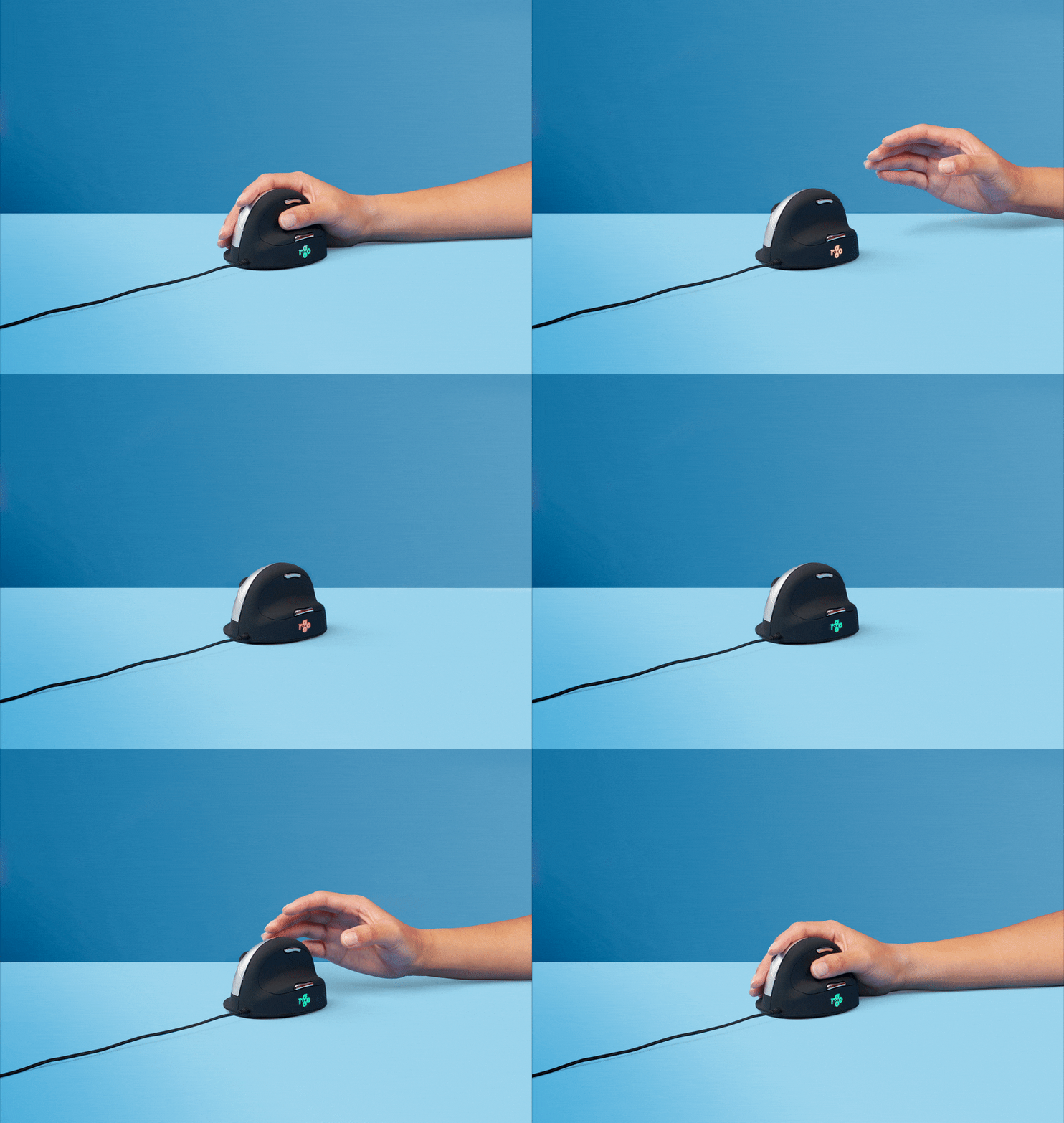
The R-Go Break mouse contains an LED light controlled by the R-Go Break software. This light changes colour, like a traffic light. When the light turns green, it means you are working healthily. Orange indicates it’s time for a short break and red means you’ve been working too long. This gives you positive feedback on your working behaviour.

Benefits

R-Go HE Break mouse

  • With break indicator
  • Natural ergonomic shape
  • Stimulates blood circulation
  • Different sizes, left and right
  • Customisable buttons

Vertical shape

Mouse movements from the arm

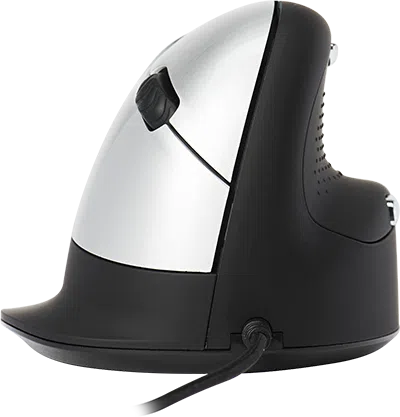
The vertical shape of the R-Go HE mouse ensures that you move the mouse with your arm instead of the wrist. This relieves small muscles and tendons in the wrist and hand and can prevent annoying complaints such as CANS. The mouse is intentionally lightweight, so you need less muscle tension to move it.

Comfortable grip

For relaxed mouse usage

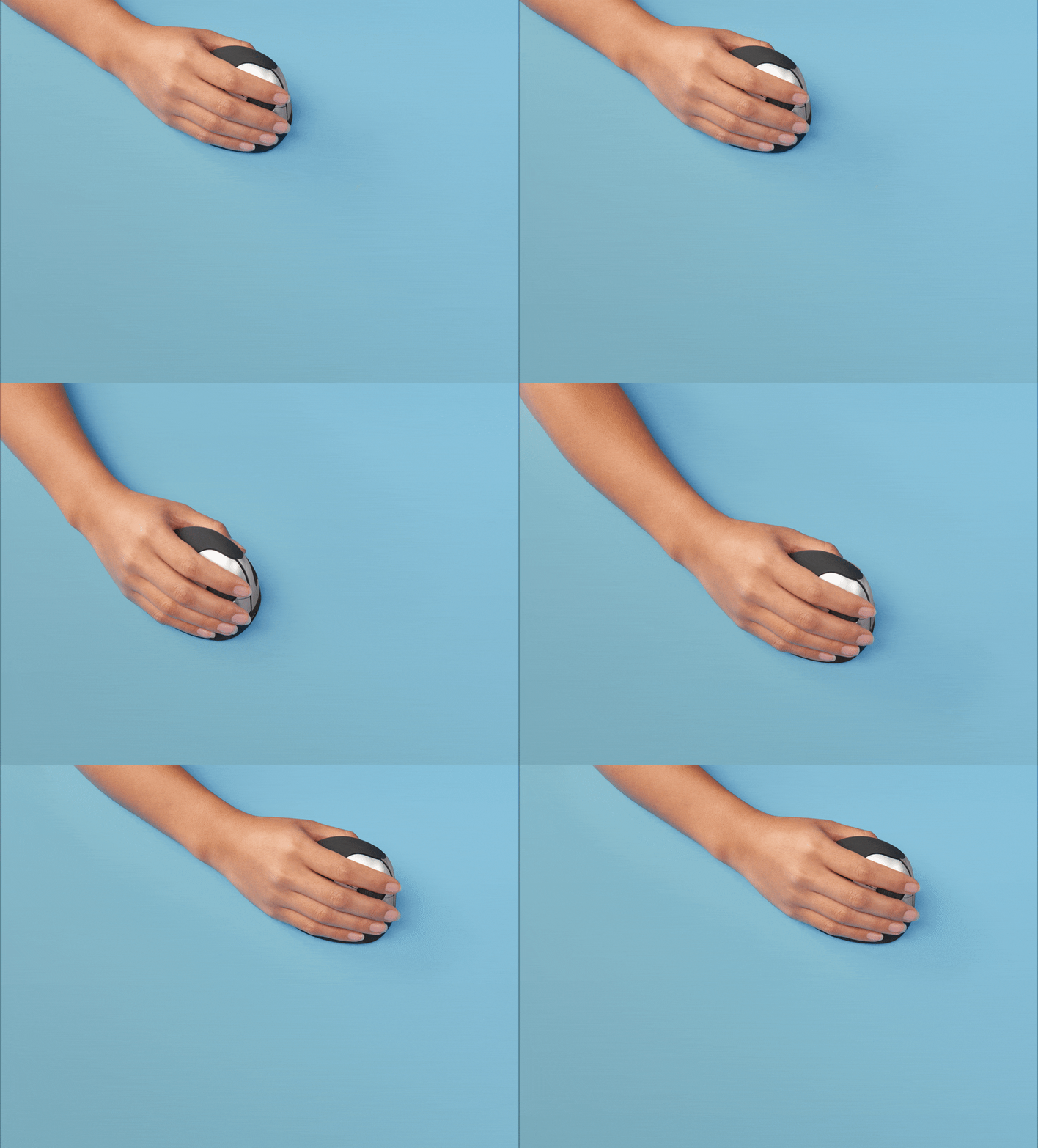
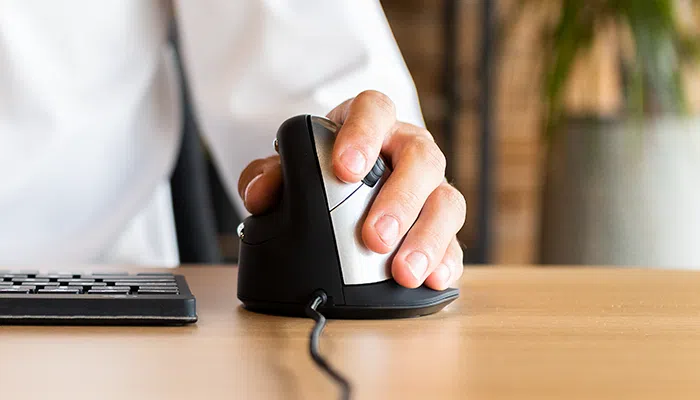
With this ergonomic mouse, your hand has a natural and relaxed position. The round design fits your hand precisely, so it is fully supported. The thumb and little finger support surfaces prevent the fingers from sliding down. This provides even more relaxation and comfort during mouse usage!

All you need to know

Description

The R-Go HE Break Mouse is an ergonomic vertical mouse with integrated break software. This smart mouse helps you remember when it’s time for a break. The ergonomic R-Go HE Break mouse has a vertical position, so you will automatically move the mouse with your forearm instead of just your hand. This prevents strain injuries, such as CANS. The HE Break mouse has a round shape, so your hand and wrist are in a natural, relaxed position. The mouse fits comfortably in your hand and supports all fingers. Are you left- or right-handed? We have different versions and sizes available, so the mouse fits every hand. The LED colour signals in the mouse indicate how healthy you are working and when it is time for a break. The mouse encourages you to take breaks on a frequent basis. These vital breaks help prevent physical complaints, stimulate blood circulation in the body and keep you fit during your working day. During mouse usage, the light changes colour, like a traffic light. Green means ‘good job’, orange that it is time for a break, red that you have been working too long. By using these subtle colour signals, you receive feedback on healthy (break) behaviour in a simple and positive way. This product works together with the R-Go Break Software that won the Benelux Office Products Award 2021.

Certified

Tested and recommended

”Ergonomic and body-friendly mice, keyboards, monitor arms, document holders and laptop stands from R-Go help with natural and effortless computer work. They relieve the user instead of putting extra strain on them. It is especially important that the aids fit the user, as different people have different preferences. Congratulations on the AGR seal of approval and on products that make working life easier!”
Aktion Gesunder Rücken (AGR)

FAQ

Frequently asked questions

The light helps you remember when it’s time to take a short break. If you already use a mouse with a break indicator and want to turn off the LED lighting on the numeric keypad, you can do the following: Press the Escape + Enter keys simultaneously.

  • Go to “Settings” in the Windows menu and click on “Devices.”
  • Check whether “Bluetooth” is displayed in the line that appears.
  • If so, check whether Bluetooth is actually turned on.

Attention: Do not use a Bluetooth dongle at this point, as this will prevent the connection from being established!

Download the free Break LED Control here and personalize your breaks.

It is possible to connect this keyboard to 3 different devices, e.g., your PC, laptop, or mobile phone. You can select channel 1, 2, or 3 for connection. Each channel can be connected to one device.

To connect the keyboard to a device, such as your laptop, press and hold the Fn key together with the key for the selected channel for at least 3 seconds. The keyboard will search for a device to connect to. The Bluetooth indicator on the keyboard will flash.

Open the “Bluetooth & other devices” menu on your computer. You can find this by tapping “Bluetooth” in the left corner of the Windows bar.

Check that Bluetooth is turned on. If not, turn Bluetooth on or check that your PC has Bluetooth.

Click “Add device” and then “Bluetooth.”

Select your Break keyboard. The keyboard will now connect to the selected device.

Category: Split Break

Set the switch to ‘on’ or, depending on the version, to green.

Category: Split Break

This means you have the latest version of the wired Split Break. We have made a few adjustments:

  • No more loose cables
  • Has additional keys, known as hotkeys
  • Improved keystroke (better tactile feedback)
  • Both halves are connected with a fixed cable
  • Has 1 USB-C port for connecting a separate numeric keypad, if required

Check whether a layout other than your keyboard layout is set in Windows. You can check this as follows:

  • Click on the Windows button and then on “Settings.”
  • Click on “Time and Language.”
  • Click on ‘Language’ in the menu on the left.
  • Select the language you use under “Preferred languages.”
  • Click on “Options.”
  • Under “Keyboards,” check whether the layout matches that of your keyboard, or add it if necessary.

Yes, that’s right. Our wireless products work via Bluetooth. You only need to pair your keyboard with your computer once.

Our keyboards are available in the following layouts: QWERTZ (DE), QWERTY (US), QWERTY (UK), QWERTY (Nordic), QWERTY (IT), AZERTY (FR), and AZERTY (BE).

Download catalog

"*" indicates required fields

This field is hidden when viewing the form
Privacy Policy*
Newsletter confirmation